
Inspection method
Casino app vs mobile browser: what differs and how to score it on your own phone
An installed app and a browser tab reach the same licensed operator by different routes. Ten checks, each with a measurement and a pass line, separate what actually changes from what is only assumed to.
Two routes to one operator
A casino app is a program installed from the App Store or Google Play. A mobile browser site is the same operator’s service opened in Safari, Chrome or another browser on the phone. The licence, the games and the account behind them do not change with the route. What changes is the layer between you and the operator: who vets the software, what the phone lets it reach, how it updates, and how it behaves when you enlarge text or turn the phone sideways.
This page sets out ten checks, says how each is measured, quotes the standard that fixes the pass line where one exists, and provides a blank sheet for the result. Where no external rule exists, the check records a number and no verdict.
The Gambling Commission’s remote technical standards bind the operator whichever route you use: “Gambling software and remote operating licence holders (including ancillary remote betting) are required to comply with our remote technical standards (RTS).” They do not name apps or browsers separately; they set what the service must provide, and the checks below measure how far that provision is from your thumb.
Sources: Gambling Commission: Remote gambling and software technical standards.
Is a casino app safer than a browser?
Neither route is safer by nature. The safety that matters most, whether the operator holds a Great Britain licence, is a property of the operator and is checked on the Commission’s register, not in a store or an address bar. The two routes then differ in three specific ways that can be observed.
The first is a second gatekeeper. Google Play’s policy for real-money gambling apps states that the developer “must have a valid gambling license for each country or state/territory in which the app is distributed”, that the app “must prevent access and use from countries, states/territories, or the geographic areas not covered by the developer-provided gambling license”, that it “must be free to download and install from the Google Play store”, and that the “App and its app listing must clearly display information about responsible gambling”. Apple’s App Review Guidelines contain a parallel licensing and geo-restriction rule for real-money gaming in section 5.3; its current exact wording could not be retrieved in full for this note, so it is described rather than quoted. A store’s check is additional to the licence, not a substitute for looking the operator up.
The second is the permission model, covered in part 5. An installed app asks the operating system; a site asks the browser. Both leave a record you can read afterwards.
The third is updating. An installed app changes when the store delivers a new version; a browser site changes whenever the operator changes it. A scored run must therefore record the app version or the date of the browser visit, because the thing measured can move.
Sources: Google Play: Real-Money Gambling, Games, and Contests; Apple: App Review Guidelines.
Do casino apps offer the same games?
This is an empirical question and the sheet treats it as one. Check 5 chooses five named games from the operator’s browser lobby and looks for each in the app lobby, then reverses the exercise. The result is a count out of five in each direction, not a claim about the industry.
What the standards require is the information around each game, and that requirement applies wherever the game is offered. RTS 3C says: “Information that may reasonably be expected to enable the customer to make an informed decision about his or her chances of winning must be easily available before the customer commits to gamble.” The same requirement lists “the return to player (RTP) percentage or the probability (likelihood) of winning events occurring”. The implementation guidance says the information “should be easily accessible, for example by placing links on home pages for gaming or virtual event sections, game selection pages or menus, or within individual games.”
That guidance permits the RTP to live inside the game. So the measurable question is not whether the figure exists but how many taps it takes to reach it from a lobby tile, and whether the game has to load and take a stake screen first. Check 5 records both the tap count and the screen on which the figure appeared, on each route.
Sources: Gambling Commission: RTS 3 — Rules, game descriptions and the likelihood of winning.
Does an app use less data?
Nobody can answer this for your phone from a desk. The phone can answer it in a quarter of an hour, because both operating systems keep a per-app counter.
On iPhone, Apple’s support note says to open Settings, “Tap Mobile Data or tap Cellular”, then “Scroll down to find out which apps are using mobile data”, and to clear the counters “Tap Reset Statistics”. On a Pixel, Google’s note says: “Open your phone’s Settings app. Tap Network & internet and then SIMs. At the top you’ll find how much total data you use. To get graphs and details, tap App data usage”, and “To know how much data each app uses, look below the graph.” Google adds that “Some of these steps work only on Android 8.0 and up” and that on a manufacturer’s customised Android the steps may differ.
Check 10 uses those counters. Reset or note the counter, turn Wi-Fi off so that only mobile data is measured, open one named game and play it in demo mode for ten minutes by the clock, then read the counter for the app. Repeat with the browser, reading the browser’s own counter, on the same game for the same ten minutes. The browser figure includes anything else the browser did in that window, so close other tabs first and say so on the sheet. The result is two numbers in megabytes; a difference on one game on one day is not a rule.
Sources: Apple Support: Use mobile data on your iPhone or iPad; Google Pixel Help: Reduce & manage mobile data usage.
What a casino app can access on your phone
An installed app can reach only what the operating system lets it reach, and both operating systems make it ask. Apple’s developer documentation says: “The first time your app attempts to access a protected resource, the system prompts the person using the app for permission”, that the developer must supply “a purpose string or a usage description” explaining why, and that “Because a person can change authorization at any time using Settings, always check the authorization status of a feature before accessing it.” The App Review Guidelines add that “Apps must respect the user’s permission settings and not attempt to manipulate, trick, or force people to consent to unnecessary data access.”
Android splits permissions in two. Install-time permissions “give your app limited access to restricted data or let your app perform restricted actions that minimally affect the system or other apps”, and “The system automatically grants your app the permissions when the user installs your app.” Runtime permissions, “also known as dangerous permissions”, cover “private user data” such as “location and contact information”, and “When your app requests a runtime permission, the system presents a runtime permission prompt.”
A site in a browser asks through the browser, site by site. Google’s Chrome help for Android says “You can allow or block permissions for a specific site”, and lists location, camera, microphone and notifications among the permissions that can be set for one site. MDN’s Permissions API reference lists the same features (geolocation, camera, microphone, notifications, push) as ones a page may query.
Check 9 therefore records, after the session, exactly which permissions each route holds: for the app, the app’s own entry in the phone’s Settings; for the browser, the site-information panel for the operator’s domain. A prompt that appeared during the session is written down with the screen that triggered it. The check has no pass line. Location prompts may relate to the geo-restriction both stores require, so the sheet records the prompt and its stated reason rather than treating any request as a failure.
Sources: Apple Developer: Requesting access to protected resources; Apple: App Review Guidelines, 5.1.1; Android Developers: Permissions on Android; Google Chrome Help: Change site settings permissions (Android); MDN: Permissions API.
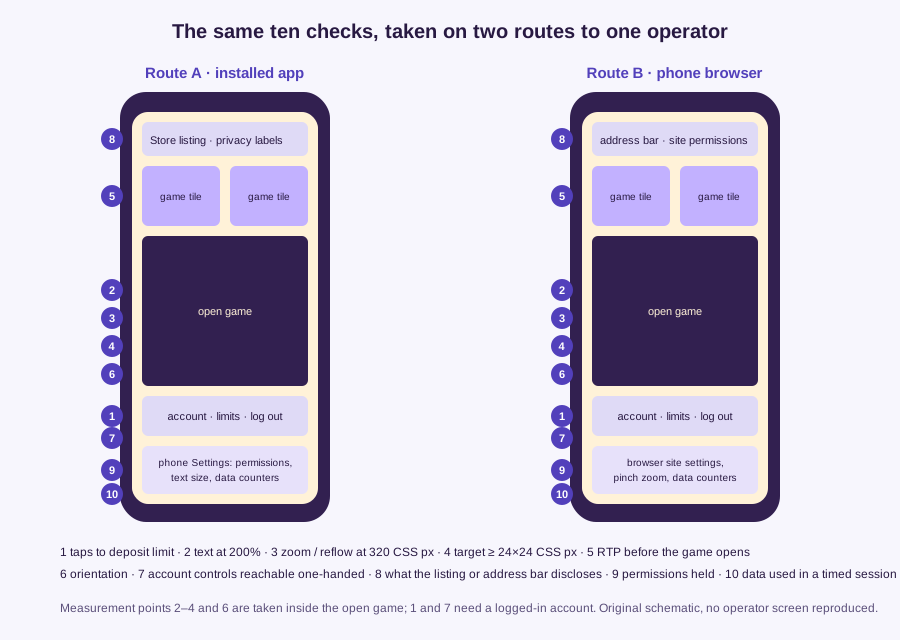
The ten checks and their pass lines
Every check is run on the same phone, in portrait unless the check says otherwise, once on the app and once on the browser, on the same day. Where a W3C or platform figure exists it is quoted; where none exists the check records a value and leaves the verdict blank.
1. Taps to the deposit limit. From the logged-in lobby, count every tap needed to reach the screen on which a deposit limit can be entered and saved. Scrolling is not a tap; note it separately. The rule behind this is RTS 12C, which requires that financial-limit facilities have “a direct link on the homepage and be clearly visible and accessible”, appear “on deposit pages/screens or via a direct link on these pages or screens”, and that operators “minimise the number of clicks or pages customers make in order to access financial limit facilities.” RTS 12A requires “easily accessible facilities for customers to set their own financial limits at any time from the point of registration.” The sheet records the count and whether a homepage link and a deposit-screen link were both present. No numeric pass line is set, because the standard sets none. What the limit does for a player belongs to Play in Balance’s note on what a limit is and is not.
2. Text at 200 percent. WCAG 1.4.4: “Except for captions and images of text, text can be resized without assistive technology up to 200 percent without loss of content or functionality.” In the browser, use the browser’s zoom to 200 percent. In the app, raise the system text size (Apple’s guidelines ask apps to let people “enlarge text by at least 200 percent”, ideally through Dynamic Type; Android exposes a font size setting under Accessibility). Open the game’s rules and the deposit-limit screen. Pass: every sentence and control that was there at 100 percent is still readable and usable. Fail: text is cut, overlaps, or a control has gone.
3. Zoom and reflow. In the browser, pinch the rules page. Record whether it zooms. Then apply WCAG 1.4.10: “Content can be presented without loss of information or functionality, and without requiring scrolling in two dimensions for: Vertical scrolling content at a width equivalent to 320 CSS pixels”. The criterion excepts “parts of the content which require two-dimensional layout for usage or meaning”, and lists “games” among its examples, so the game board itself is out of scope; the rules text, the help text and the account screens are in scope. Pass: those pages do not need sideways scrolling to read a line. In the app, pinch zoom generally does not exist, so this check is recorded as not applicable for the app and the text-size check above carries the weight.
4. Target size. WCAG 2.5.8 requires that “The size of the target for pointer inputs is at least 24 by 24 CSS pixels”, with five exceptions, the most relevant being spacing: undersized targets pass if “a 24 CSS pixel diameter circle is centered on the bounding box of each” and “the circles do not intersect another target”. A CSS pixel “is density-independent, and distinct from actual hardware pixels present in a display.” Measure three controls: the stake plus and minus buttons, the game’s close control, and the save button on the deposit-limit screen. From a screenshot, measure the control in device pixels and divide by the phone’s device pixel ratio; a 72-pixel-wide button on a 3× iPhone is 24 CSS pixels wide. Record the width and height and the exception relied on, if any. The platform figures go in a separate column: Apple lists 44 by 44 points as the default iOS control size and 28 by 28 as the minimum; Android recommends “a focusable area, or touch target size, of at least 48dpx48dp”. The lab’s shorter note on measuring a button explains why the drawn icon and the active area are different things.
5. RTP before the game opens. From a lobby tile, count taps to the first screen showing the RTP figure, and record whether the game had to load first. Then run the five-game parity count from part 3 in both directions. Pass line: none imposed; RTS 3C requires the information to be “easily available before the customer commits to gamble”, and the sheet records how many taps “easily” took.
6. Orientation. WCAG 1.3.4: “Content does not restrict its view and operation to a single display orientation, such as portrait or landscape, unless a specific display orientation is essential.” Rotate the phone with the rules page open and with the deposit-limit screen open. Pass: both display in both orientations. A game that locks to landscape is recorded as locked, not failed, because the criterion itself distinguishes an author restriction from an essential one and this check does not decide which applies. The W3C also asks reviewers to distinguish an author’s restriction from “device-specific settings governing the locking of display orientation”, so turn the phone’s own rotation lock off first.
7. One-handed reach. Holding the phone in one hand, record which third of the screen (top, middle, bottom) holds the account menu, the balance, the deposit-limit link and the log-out control on the lobby. No published pass line is claimed for this; the sheet records positions.
8. What the listing or address bar discloses. Before entering, copy from the store listing: the age rating, the declared data categories, the last update date and the version. In the browser, note whether the address bar shows a secure connection and what the site-information panel says.
9. Permissions held. As set out in part 5. Record, do not score.
10. Data used in ten minutes. As set out in part 4. Record two figures in megabytes.
Contrast, applied to every text you read along the way. Contrast is not a numbered row but a measurement taken on three texts on each route: the rules body text, the stake amount, and the deposit-limit label. WCAG 1.4.3: “The visual presentation of text and images of text has a contrast ratio of at least 4.5:1”, except that “Large-scale text and images of large-scale text have a contrast ratio of at least 3:1”, large-scale meaning “at least 18 point or 14 point bold”. For control outlines and icons, WCAG 1.4.11 sets 3:1 against adjacent colours. The ratio is defined as “(L1 + 0.05) / (L2 + 0.05), where L1 is the relative luminance of the lighter of the colors, and L2 is the relative luminance of the darker of the colors.” Relative luminance is “L = 0.2126 * R + 0.7152 * G + 0.0722 * B”, where each channel is the 8-bit value divided by 255 and then, if at or below 0.04045, divided by 12.92, otherwise raised as ((value + 0.055) / 1.055) ^ 2.4. Pick the two colours from a screenshot with any colour picker and enter the hex values in the worksheet below; it applies that formula and nothing else. Android’s own guidance quotes the same 4.5:1 and 3:1 lines for app text.
Sources: W3C: Understanding 2.5.8 Target Size (Minimum); W3C: Understanding 1.4.3 Contrast (Minimum); W3C: Understanding 1.4.11 Non-text Contrast; W3C: Understanding 1.4.4 Resize Text; W3C: Understanding 1.4.10 Reflow; W3C: Understanding 1.3.4 Orientation; W3C: Understanding 2.5.5 Target Size (Enhanced); Gambling Commission: RTS 12 — Financial limits; Apple: Human Interface Guidelines — Accessibility; Android Developers: Make apps more accessible.
The blank scoring sheet
Print this and fill it in with a pen. A row scores 1 for a pass, 0 for a fail, and stays blank when the pass line is “record only” or the screen was not reached. The total is passes out of rows reached, written as a fraction, never as a percentage, so that a run that stopped at a log-in wall cannot be mistaken for a clean one. No operator has been scored with this sheet yet; the results column is empty because the lab has not run the inspection, not because every product passed.
| # | Check | Pass line and source | App: measured | App: 1 / 0 / – | Browser: measured | Browser: 1 / 0 / – |
|---|---|---|---|---|---|---|
| 1 | Taps from logged-in lobby to a saved deposit limit; homepage link and deposit-screen link present? | Record only. RTS 12A, 12C: direct link on homepage and deposit screens, clicks minimised. | – | – | ||
| 2 | Rules text and limit screen at 200 percent text size | Pass if no content or control is lost. WCAG 1.4.4. | ||||
| 3 | Pinch zoom works; rules and account pages reflow at 320 CSS px | Pass if no sideways scrolling to read a line; game board excepted. WCAG 1.4.10. App: not applicable. | n/a | – | ||
| 4 | Stake +/−, game close, limit save: width × height in CSS px (device px ÷ DPR) | Pass if each ≥ 24 × 24 CSS px or the spacing exception holds. WCAG 2.5.8. Note Apple 44 pt default, Android 48 dp. | ||||
| 5 | Taps from lobby tile to RTP figure; did the game load first? Five-game parity count each way | Record only. RTS 3C: easily available before commitment. | – | – | ||
| 6 | Rules page and limit screen display in both orientations | Pass if both display in both. Game lock recorded, not scored. WCAG 1.3.4. | ||||
| 7 | Screen third holding account menu, balance, limit link, log out | Record only. | – | – | ||
| 8 | Store listing: age rating, data categories, last update, version. Browser: connection and site panel | Record only. Self-declared by the developer (Apple, Google Play). | – | – | ||
| 9 | Permissions held after the session, and any prompt with its stated reason | Record only. | – | – | ||
| 10 | Mobile data used in ten minutes of one demo game, Wi-Fi off, in MB | Record only. | – | – | ||
| C | Contrast: rules body text, stake amount, limit label (hex pair and ratio for each) | Pass if body ≥ 4.5:1 and large text ≥ 3:1; controls ≥ 3:1. WCAG 1.4.3, 1.4.11. | ||||
| Total: passes / rows reached (rows 2, 3, 4, 6, C) | ||||||
Header lines to fill in above the table before starting: operator; phone model; operating system version; app version from the store listing; browser and version; date; whether the account was logged in; which five games were chosen for row 5; which game was used for row 10.
Worksheet for row C
Contrast ratio from two hex colours
Applies the W3C relative-luminance and contrast-ratio definitions to the two values entered. It does not read colours from a screen; pick them yourself and record the hex pair on the sheet.
What the app store listing does not tell you
A listing looks like an inspection report and is not one. Apple’s App Privacy section lets users “learn about some of the data types the app may collect, and whether that data is linked to them or used to track them”; Apple states that the information “is required to submit new apps and app updates to the App Store”, and tells developers “You’re responsible for keeping your responses accurate and up to date.” Google Play’s Data safety section works the same way: “All developers that have an app published on Google Play must complete the Data safety form”, and “You alone are responsible for making complete and accurate declarations in your app’s store listing on Google Play.” Google adds: “Google Play reviews apps across all policy requirements; however we cannot make determinations on behalf of the developers of how they handle user data.”
So the listing tells you what the developer says the app collects. It does not tell you the operator’s licence number unless the developer chose to write it in the description, how many taps the deposit limit takes, whether the rules survive 200 percent text, what the stake buttons measure, or where the RTP figure is. Nothing in either store’s policy requires those to appear. Row 8 of the sheet copies what the listing does say so that a later reader can see the gap between the listing and the measurements for themselves.
A browser has no listing. The address bar shows whether the connection is secure and the site-information panel shows which permissions the site holds; the rest is found by using the site, which is what rows 1 to 7 do.
Sources: Apple: App privacy details on the App Store; Google Play: Provide information for Google Play’s Data safety section.
Recording a run so it can be repeated
The method’s value is that a second person with the same phone gets the same numbers. That needs four things written down before the first tap: the phone and its operating-system version, the app version shown on the listing, the browser and its version, and the date. It needs two things written down during the run: every screen on which a check was taken, and every point at which the run stopped. Checks 1 and 7 need a logged-in account; a run that stops at the log-in wall records them as not reached, which is a result about the run and not about the product.
Two checks change with the phone rather than the operator: target size depends on the device pixel ratio used, and data usage on the network and on what else the browser was doing. Record both.
Nothing here has been run against a named operator. When the lab publishes results, each will carry a completed copy of this sheet, the header lines above, and the screenshots the measurements were taken from, and the sheet version will be quoted so that a later change to the method does not silently rewrite an earlier score. Until then the honest answer to “which is better” is the one in the questions below: it depends on the row, and the rows are still blank.
Felt & Form runs a comparable worksheet for the desktop interface; the checks above are the mobile counterpart, measured for accessibility rather than layout.
Sources
- Understanding Success Criterion 2.5.8: Target Size (Minimum), W3C Web Accessibility Initiative, retrieved 18 September 2026.
- Understanding Success Criterion 2.5.5: Target Size (Enhanced), W3C Web Accessibility Initiative, retrieved 18 September 2026.
- Understanding Success Criterion 1.4.3: Contrast (Minimum), W3C Web Accessibility Initiative, retrieved 18 September 2026.
- Understanding Success Criterion 1.4.11: Non-text Contrast, W3C Web Accessibility Initiative, retrieved 18 September 2026.
- Understanding Success Criterion 1.4.4: Resize Text, W3C Web Accessibility Initiative, retrieved 18 September 2026.
- Understanding Success Criterion 1.4.10: Reflow, W3C Web Accessibility Initiative, retrieved 18 September 2026.
- Understanding Success Criterion 1.3.4: Orientation, W3C Web Accessibility Initiative, retrieved 18 September 2026.
- Web Content Accessibility Guidelines (WCAG) 2.2, W3C Recommendation of 12 December 2024, retrieved 18 September 2026.
- App Review Guidelines, Apple Developer, retrieved 18 September 2026.
- App privacy details on the App Store, Apple Developer, retrieved 18 September 2026.
- Requesting access to protected resources, Apple Developer Documentation, retrieved 18 September 2026.
- Human Interface Guidelines: Accessibility, Apple Developer, retrieved 18 September 2026.
- Use mobile data on your iPhone or iPad, Apple Support, retrieved 18 September 2026.
- Real-Money Gambling, Games, and Contests, Google Play Developer Policy Center, retrieved 18 September 2026.
- Provide information for Google Play’s Data safety section, Google Play Console Help, retrieved 18 September 2026.
- Permissions on Android, Android Developers, retrieved 18 September 2026.
- Make apps more accessible, Android Developers, retrieved 18 September 2026.
- Reduce & manage mobile data usage, Google Pixel Help, retrieved 18 September 2026.
- Change site settings permissions (Android), Google Chrome Help, retrieved 18 September 2026.
- Permissions API, MDN Web Docs, retrieved 18 September 2026.
- Remote gambling and software technical standards, Gambling Commission, retrieved 18 September 2026.
- RTS 3: Rules, game descriptions and the likelihood of winning, Gambling Commission, retrieved 18 September 2026.
- RTS 12: Financial limits, Gambling Commission, retrieved 18 September 2026.